

How TapOnce Works
From digitizing your details to sharing with explicit consent on any phone — here is how smart networking happens in four frictionless steps.
Add Your Details
On your phone, either snap a photo of your existing paper business card and let our smart scanner auto-fill your profile, or enter your name, designation, company, and links manually.
Saved to Your Digital Profile
Your details are securely encrypted and stored in your TapOnce cloud profile. Update your phone number, portfolio, or job title anytime online without ever reprinting a card.
Tap to Share, With Consent
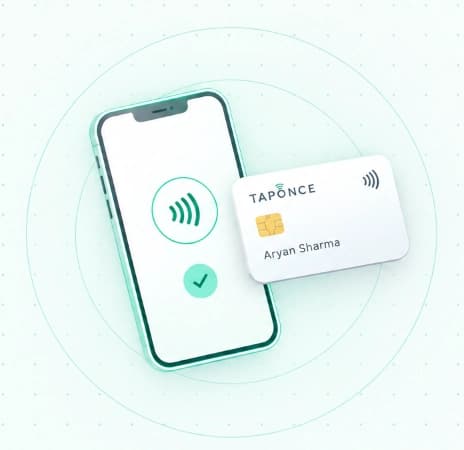
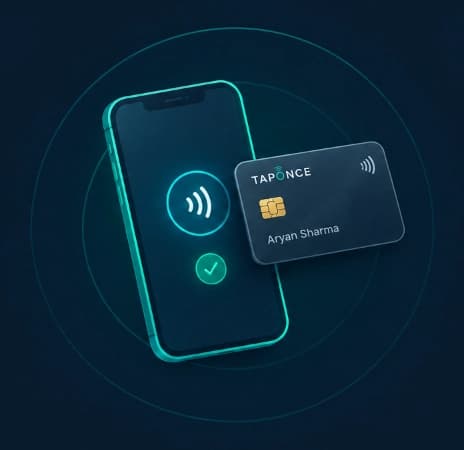
When you tap your card against someone's phone, an instant confirmation prompt appears asking them to allow the share. Once they tap OK, your details transfer smoothly to their device.
Instantly Connected, Any Phone
On NFC-ready Android phones, your contact card saves directly. On iPhones, it opens your digital web profile instantly. For older devices, the QR code on back delivers the exact same result.
The Smart Choice
See how TapOnce compares to traditional business cards.